
02. Deals & Sales Pipeline Management
The Deals module serves as the primary revenue command center for account executives, sales managers, and commercial operators. It unites visual drag-and-drop stage progression, mathematically weighted revenue forecasting, dynamic multi-attribute view segmentation, and native bulk data ingestion into an instant, offline-first workspace.
Operational Best Practice: Enforce rigorous stage exit criteria across your commercial team. Never advance an opportunity to "Proposal Sent" or "Negotiation" without confirmed decision-maker attendance and verified budget authority.
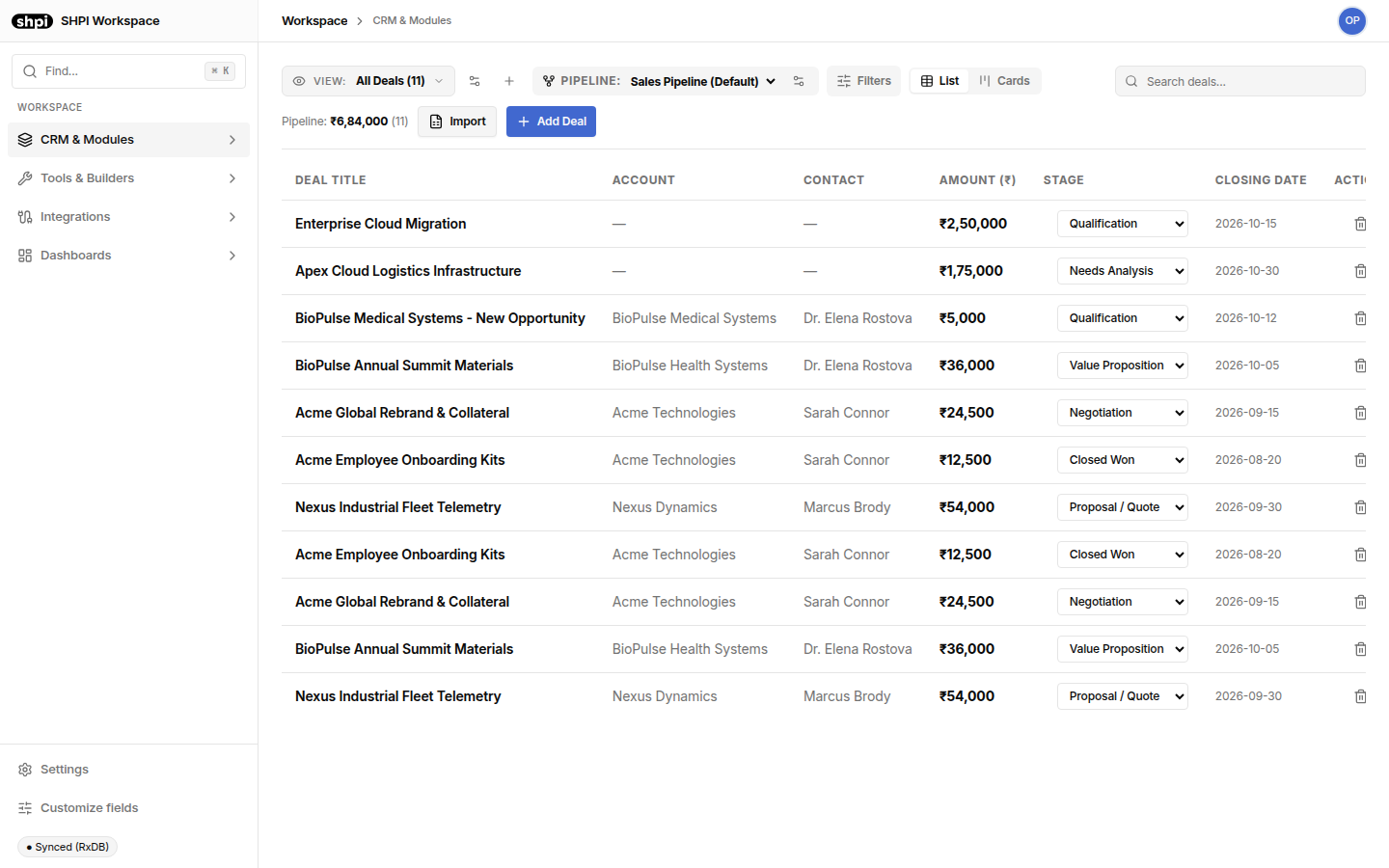
Section 1: What the Deals Module Does
Eliminating commercial blindspots, spreadsheet chaos, and quote-to-cash leakage:
High-velocity sales organizations frequently stumble over fragmented spreadsheets, out-of-date probability forecasts, and disjointed handoffs between sales closers and accounting teams. When deals are tracked in isolated desktop workbooks, executive leadership has no live visibility into weighted cash flows, and customer context is lost whenever account representatives change.
The Deals module solves this friction by providing a unified commercial registry where every active negotiation is directly tied to its corporate account, primary contact stakeholder, product line items, and eventual settlement invoice. With sub-second query performance and local-first offline resilience, sales professionals update pipelines during client meetings without buffering delays or cloud loading spinners.
User Flow 1: Exploring & Switching Views
Seamlessly transition across system and custom saved segments without losing search filters or context:
The View Selector allows sales reps and leadership to focus on targeted subsets of their active pipeline with a single click. Switch between full operational rosters, high-yield enterprise deals, or closed-won retrospectives in real time.
User Flow 2: Creating Custom Views (Field-by-Field Breakdown)
Construct tailored pipeline views with custom filter logic, layout modes, sorting hierarchies, and column visibility:
Every business operates with distinct qualification milestones and review workflows. The Create Custom View drawer enables team administrators to design bespoke views without database migrations or engineering requests. The recording below demonstrates configuring every single configuration field.
User Flow 3: Creating and Updating Deals
Capture active opportunities and execute progressive drawer updates throughout the negotiation lifecycle:
Registering an opportunity requires only essential initial parameters: title, expected contract value, initial milestone stage, win probability, and commercial notes. As conversations evolve, reps click into the contextual slide-out drawer to log notes, adjust probability, or re-forecast revenue.
User Flow 4: Multi-Pipeline Management & Custom Stages
Model different sales motions with dedicated stage milestones, win probabilities, and color codes:
Organizations often operate multiple business models simultaneously—e.g. self-serve SaaS renewals vs complex multi-month enterprise deployments. Custom Pipelines allow you to configure independent stage sequences with distinct percentage weights for accurate rollups.
User Flow 5: Applying Multi-Facet Filters & Chips
Narrow down massive deal rosters using multi-attribute facet drawer and live interactive chips:
Isolate opportunities by sales stage, minimum and maximum contract values, deal categorization (New Business, Existing Business, Renewal), and acquisition channels. Active criteria render as interactive badge chips that can be toggled or reset instantly.
User Flow 6: Dual Layout Views (List vs Cards & Drag-and-Drop)
Switch effortlessly between tabular data grids and visual stage-progression Kanban columns:
Choose the optimal representation for your commercial workflow: dense List view for spreadsheet-like sorting and custom column auditing, or visual Cards view for agile pipeline drag-and-drop progression. Dragging cards between stages automatically recalculates column rollups and triggers audit logs.
User Flow 7: Bulk Ingestion via XLSX Paste Grid
Migrate active spreadsheets or copy-paste external batches directly into verified CRM records:
Importing records into legacy systems often means handling broken CSV encodings, missing headers, and cryptic upload error emails. SHPI provides an interactive in-browser spreadsheet paste grid with live cell validation, template generation, and instant error telemetry.
Section 3: Comparison of Market Alternatives
An objective architectural evaluation of how SHPI Deals compares with enterprise suites, manual spreadsheets, and point tools:
| Operating Dimension | SHPI Deals | Enterprise CRMs (Salesforce / HubSpot) | Spreadsheets (Excel / Sheets) | Standalone Point Kanban Tools |
|---|---|---|---|---|
| Interface Latency | Instant sub-second interactions; local-first query engine | Heavy cloud page loads; 3-5s per record drawer transition | Instant for small sheets; severe lagging on shared 100+ row sheets | Fast UI, but completely disconnected from billing and client contacts |
| Offline Resilience | 100% functional offline; auto-reconciles on reconnection | Completely inoperable without continuous internet connectivity | Creates conflicting duplicate local copies when edited offline | Requires constant network connection; changes fail silently offline |
| Deal-to-Invoice Bridge | Native 1-click invoice generation with product mapping | Requires complex third-party ERP/accounting connectors | Manual retyping of numbers into Word or PDF invoice templates | Zero invoicing capabilities; requires manual handoffs to finance |
| Custom Views & Filters | Built-in visual view builder with custom AND/OR rules | Requires dedicated Salesforce/HubSpot administrative certs | Manual filter views that get wiped when colleagues sort | Basic board filtering; cannot customize visible table columns |
| Data Hygiene & Import | Interactive XLSX paste grid with real-time cell validation | Complex CSV import wizards with silent row failure logs | Prone to broken formulas, typo column names, and row deletions | Manual one-by-one card entry; no bulk clipboard mapping |
| Total Cost of Ownership | Predictable workspace licensing; unlimited users & pipelines | Aggressive per-seat pricing tiers ($150-$300/user/month) | Low software license cost, but massive labor waste & error risk | Separate SaaS subscription ($10-$25/seat) adding to software bloat |
Section 4: Operational Best Practice Playbook
Daily operational rhythms and guidelines for maintaining high pipeline velocity:
1. Daily Morning Standup: Open the Deals module in Kanban mode and review deals lingering in the same stage for more than 14 days. Re-verify expected close dates and add contextual notes.
2. Weighted Probability Hygiene: Ensure win percentages accurately reflect customer commitment rather than optimism. Closed Won is 100%, Negotiation is 80-90%, Proposal Sent is 50-75%, and early Qualification is 10-25%.
3. Immediate Deal-to-Invoice Conversion: When an opportunity reaches "Closed Won", immediately open the detail drawer and click "Create Invoice". This automatically pulls all agreed product line items, prices, and tax rates into a formal billing draft—reducing quote-to-cash turnaround from days to seconds.